


Arming Yourself With Knowledge: How to Download All of Wikipedia So You Can Access It Offline, Forever.

"Knowledge is power. Knowledge shared is power multiplied."
—Robert Boyce

Yes, you can have Wikipedia in the palm of your hand, literally (no internet required). An app called Kiwix allows you to download an offline copy of Wikipedia (with or without images) to be used/stored on your smartphone, desktop computer, laptop, or tablet. This will allow you to access the full Wikipedia catalogue if the grid ever goes down or if the internet is no longer available for whatever reason. It will allow you to access Wikipedia as it is today, just in case it is ever not available because of government censorship or a cyber attack. With Kiwix, you can have much of human knowledge stored on an SD card, an external hard drive, or a USB flash drive. That's pretty awesome.
Kiwix is available for Android, Linux, Mac OS, iOS and Windows operating systems. Below are the instructions to download it. My advice? Do it sooner rather than later, and donate to Wikipedia, while you're at it.
Instructions (Windows)
Purchase a 128GB MicroSD card or USB flash drive (these can be purchased at most office supply stores and even drug stores or big box stores like Wal-Mart and Target). I recommend SanDisk or Lexar brands for higher quality.
Insert the MicroSD with adapter or the flash drive into a desktop computer or laptop.
Right-click the MicroSD card or flash drive, view Properties and ensure that it is formatted to a non-FAT32 partition (e.g., exFAT or NTFS). Reformat the card if needed with the instructions below:
How to convert a FAT32 drive to NTFS
Right-click on the drive and choose Format.
Click the arrow on the dropdown list under File System and select NTFS in the file system drop-down.
Click the Start button.
The download will take several hours, so it is best to get this started right before bed. Go to the Kiwix website: https://kiwix.org/en/applications/.
You will have the option to download it for Android, Windows, iOS, MacOS, or GNU/Linux. The application comes in a ZIP file. The instructions below are for Windows, and then after that are the instructions for what to do if you installed it on your phone.
Windows Instructions
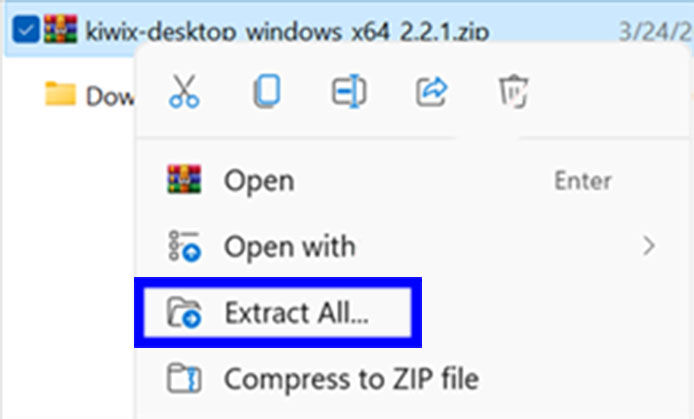
Once the files are done downloading, right-click the file and click "Extract All."
You'll see a folder with the same name as the ZIP file; open it and any subfolders until you see a large number of files. Scroll through the list (or you can search in the search box above) until you find a file named "kiwix-desktop," and double-click it.

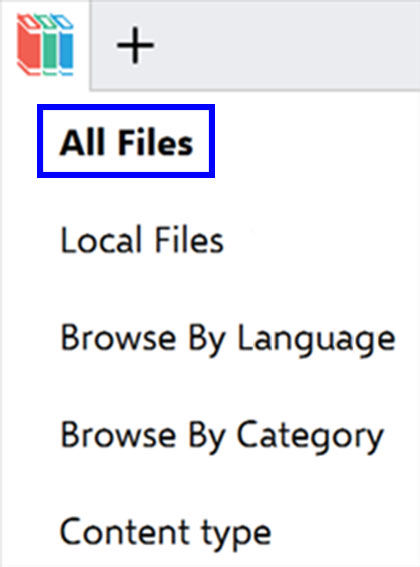
Click "All Files" in the top left corner to display a complete list of available content. You could also click "Browse by Language," if you want to find Wikis written in a particular language.
You'll see a lot of Wikis in the list! You can either scroll through until you find what you want, or use the search box. The Entirety of Wikipedia is available as two different downloadable files. One contains the text, the other contains the pictures. I chose to download mine without pictures, but you may choose to get the pictures—just note that it takes over 100 GB to download them!

If you want to change your download directory, click on the three dots in the top right corner and click "Settings," or hit F12 on your keyboard.

Click "Browse" to change where the files will be stored on your device, then close Settings by clicking the X.

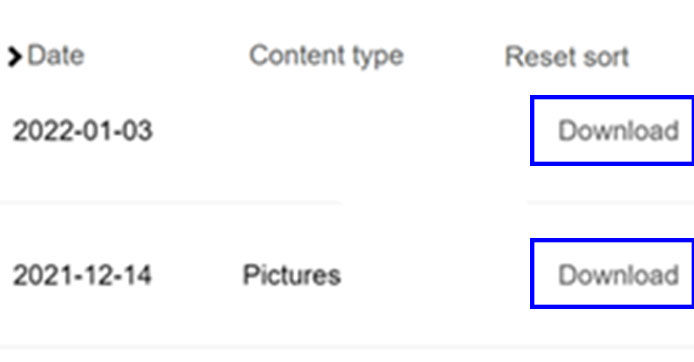
It will send you back to the file list. From here, download the archives by clicking "Download" on the right-hand side.
Voila! You've got Wikipedia on your Windows device, even without an internet connection. Look below for instructions for the phone.
If you want access on your phone, continue with the steps below:
8. Go to your phone's app store and install the Kiwix app to your device.
9. Power down your phone once it is installed.
10. Insert the MicroSD card into the SD tray of the phone.
11. Turn your phone on. It may take a few moments to configure the MicroSD for use.
12. Open the Kiwix app.
13. Configure Kiwix to use the Wikipedia ZIM file on the MicroSD by selecting the SD Card Icon and then selecting the correct storage path.
14. To verify Offline functionality, put your device into Airplane Mode (which disables Wi-Fi and data)
15. Once in Airplane Mode, do a Wikipedia Search using Kiwix for any topic. Verify that Kiwix opens the page for the searched item even when the device is in Airplane Mode.
Congratulations! You now have a complete copy of Wikipedia (with images) stored offline on your mobile device, flash drive, SD card, or computer. With or without internet access, all of the knowledge and data available on Wikipedia is now accessible to you at any time.


